10 Free iPhone Mockups for App, UI and Design Presentations
A good phone mockup can make a screen design look completely different.
Instead of showing an app interface as a plain screenshot, you can place it inside a realistic device and give the whole presentation more depth. This is useful for app designers, UI/UX designers, freelancers, agencies and anyone putting together a portfolio or client presentation.
If you’re looking for free iPhone mockups, I’ve put together 10 free phone, mobile and device mockups from MockupShelf that you can use for different types of design projects.
There are simple phone scenes, floating devices, multiple phone mockups, angled presentations and more cinematic options. So depending on what you’re designing, you can pick a mockup that actually fits the project instead of using the same style every time.
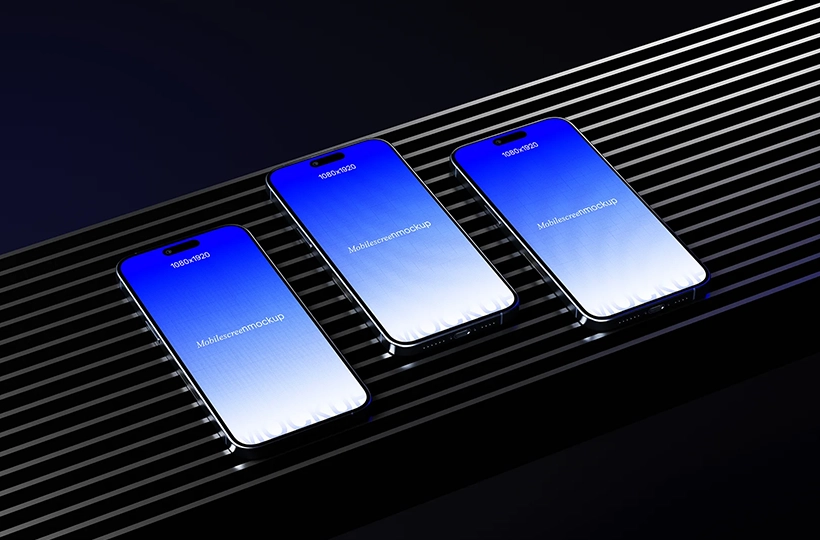
If you need to show more than one screen at once, this three phone screen mockup is a great option.
The scene has three smartphones arranged across a dark platform with a series of lines running underneath them. The blue screen treatment gives the mockup a modern, tech-focused look without making the scene too complicated.
You could use the three devices to show different screens from the same app, an onboarding flow, a few key features or different stages of a UI design.
It’s also a good choice when you’re putting together a case study and want to show several screens in one image.
Best for: App UI, UX case studies, mobile apps, portfolios and client presentations.
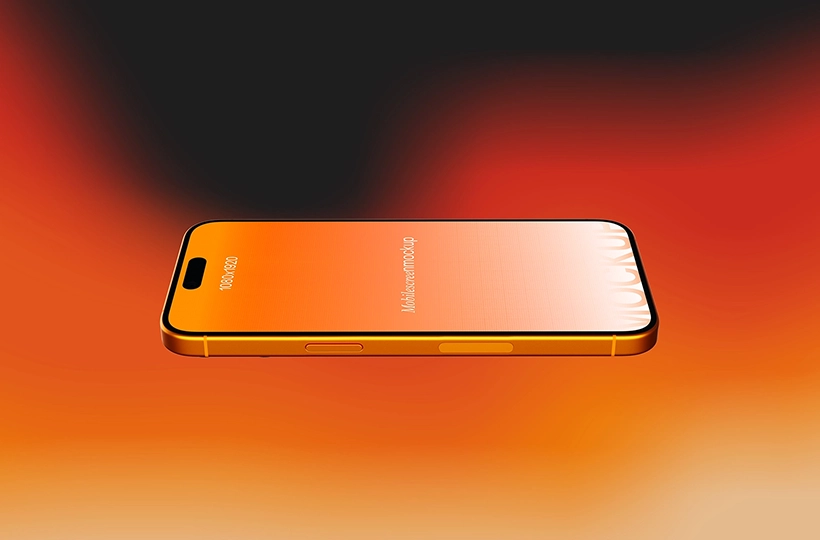
This floating mobile phone mockup takes a much simpler approach.
The phone is positioned horizontally above a warm orange gradient background, giving the design a clean but eye-catching presentation. There’s plenty of space around the device, so your screen design remains the main focus.
The bright background also makes this one a good fit for promotional graphics. You could use it for an app launch, website presentation, social media post or digital product showcase.
Best for: App screens, mobile websites, UI designs, digital products and promotional graphics.
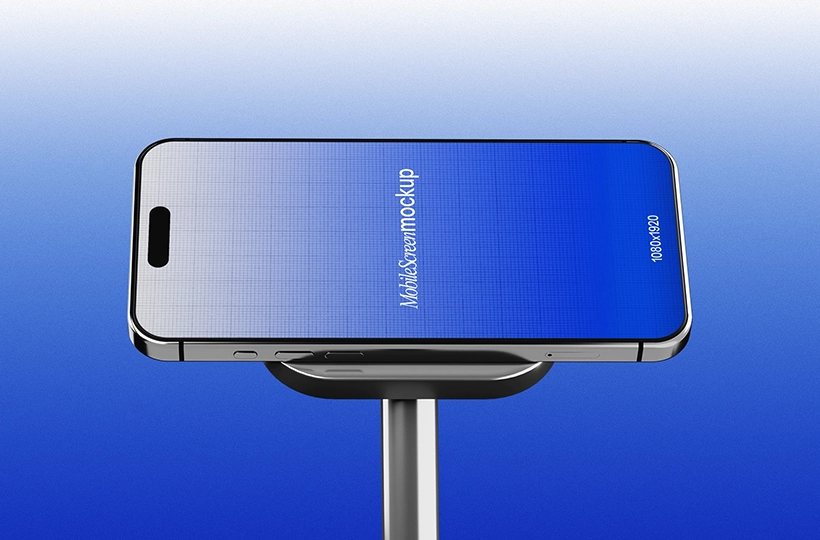
Sometimes a simple presentation works best.
This phone on stand mockup shows a horizontal smartphone sitting on a minimal stand against a blue background. The composition doesn’t have many extra elements, which makes it easy to focus on the screen itself.
It’s especially useful if your design has a landscape layout or if you want to present a website, dashboard or wide mobile interface.
This could also work nicely in a design portfolio where you want the mockup to look clean rather than overly stylized.
Best for: Website previews, app interfaces, UI concepts, dashboards and portfolio presentations.
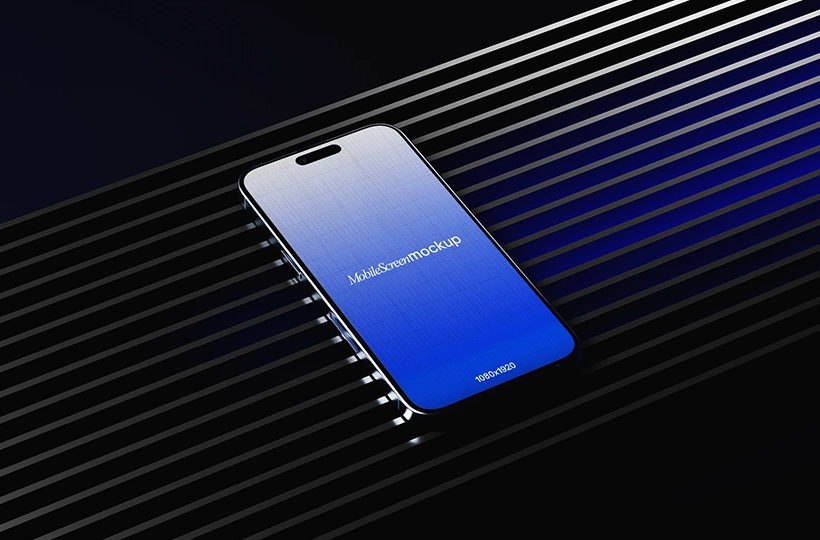
This one has a more dramatic look.
The smartphone is placed diagonally across a dark metal surface, with blue lighting running through the scene. The angle gives the mockup a little more depth and makes it feel different from a standard straight-on phone presentation.
It’s a good choice when you want your mobile design to feel like part of a finished visual rather than simply showing a screenshot inside a phone.
Use it for app designs, SaaS interfaces, landing pages, portfolios or promotional graphics where you want something with a stronger visual style.
Best for: App UI, SaaS designs, landing pages, UI/UX projects and promotional graphics.
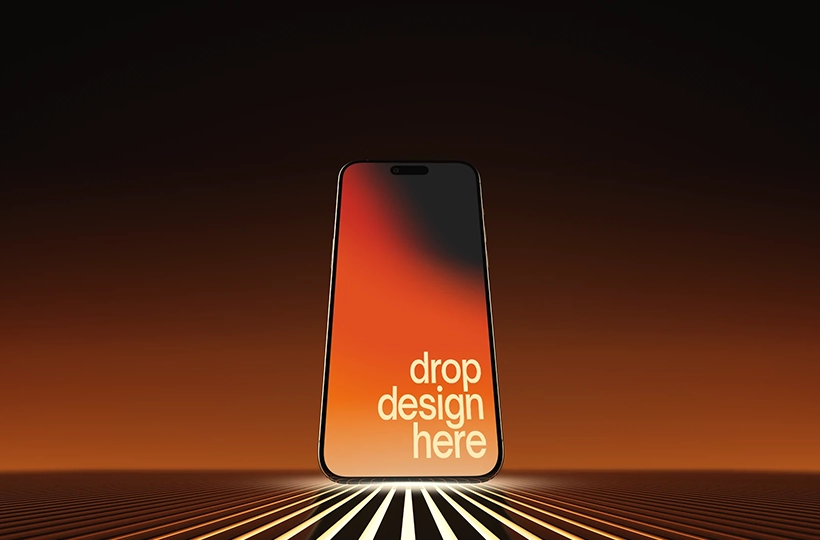
This standing smartphone mockup has a completely different feel.
The phone is positioned vertically on a lighted surface, with glowing lines extending into the background. The dark orange and black setting gives it a futuristic, almost cinematic appearance.
Because of the way the phone is positioned, this would work particularly well as a hero image for an app, digital product or mobile website.
It’s also a nice option when you need a stronger visual for a presentation or social media graphic.
Best for: App launches, digital products, mobile websites, branding and promotional designs.
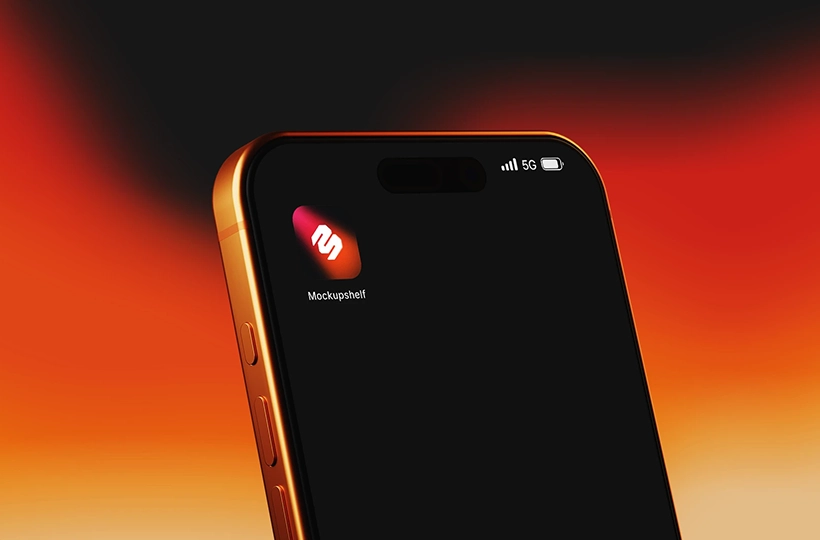
If you want the phone to take up most of the image, this close-up mockup is worth trying.
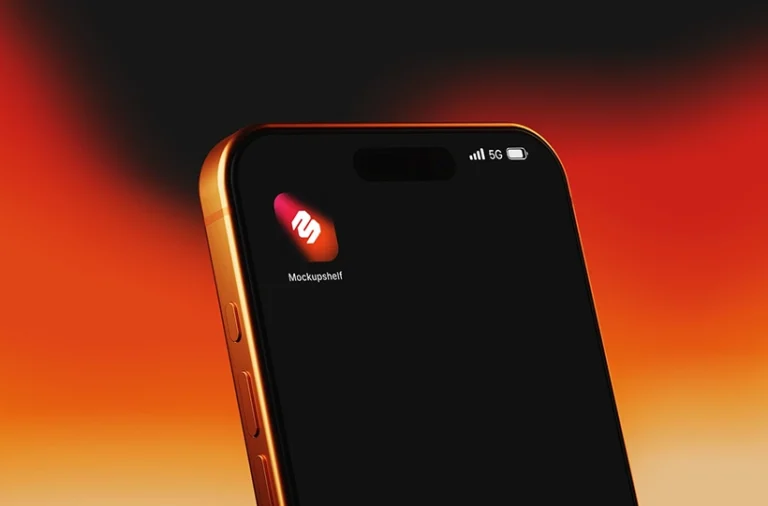
The device is shown from an angled perspective and fills a large part of the frame. The orange and red background gives it a cinematic feel while keeping the attention on the phone.
This is particularly useful for showing an app home screen or another important screen where you want the details to be easy to see.
You can also use it for app branding, product announcements or portfolio covers.
Best for: App home screens, mobile UI, app branding, product presentations and promotional graphics.
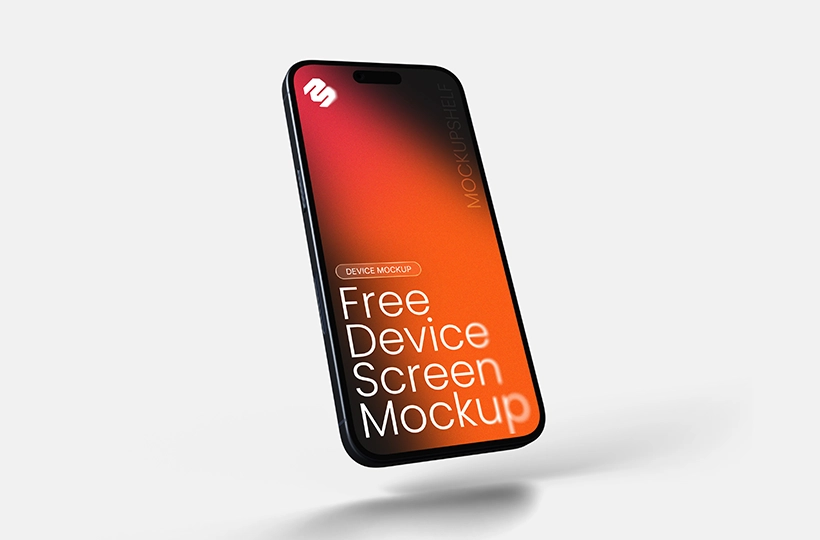
Here’s a cleaner floating phone option.
The smartphone is tilted slightly and floating above a soft shadow on a light background. There’s no complicated scene around it, so the screen remains the main focus.
This makes it a useful all-rounder for UI/UX work. If you’re preparing a portfolio case study or sending an app concept to a client, this type of device mockup can give the presentation a polished look without distracting from the design.
Best for: UI/UX projects, app screens, website previews, portfolios and client presentations.

This mockup keeps things very simple with a single angled smartphone against a solid brown background.
The plain backdrop gives you a lot of flexibility. You can use the mockup as it is, or build your own graphic around it by adding typography, branding or other elements.
It’s a good option when you want the phone to stand out without using a detailed environment.
Best for: App UI, mobile screens, branding, social media graphics and design presentations.

Need to show two screens together?
This version uses two smartphones against the same solid backdrop, with each device positioned at a slightly different angle. That makes the composition more dynamic than a single phone mockup.
You could use one phone for a home screen and the other for an inner page, or use the two devices to show different states of the same app.
It’s particularly useful for UI/UX case studies where showing multiple screens together makes more sense than presenting them separately.
Best for: Multiple app screens, UI/UX case studies, mobile products, portfolios and presentations.
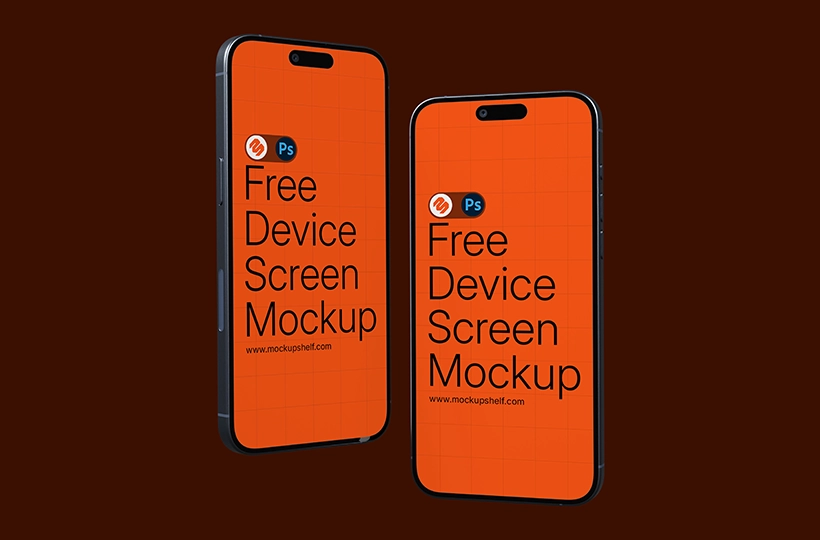
The final mockup in the collection also features two smartphones, but the composition is a little more direct.
Both devices are large in the frame and give you plenty of room to showcase your screen designs. The solid dark background also creates a strong contrast with the bright screens.
This works well when the screen content is the most important part of the presentation and you want to show two related designs side by side.
For example, you could use one phone for an app’s main screen and the other for another section of the interface.
Best for: App UI, mobile UX, app presentations, portfolios and promotional graphics.
Which Free Phone Mockup Should You Use?
It really depends on the type of design you’re presenting.
If you have multiple screens, start with the three phone mockup or one of the two-phone mockups. They give you enough space to show different parts of an app in the same image.
For a clean portfolio presentation, the floating smartphone mockup is a good choice. The simple background keeps the attention on your design.
If you want something with a little more visual impact, try the metal bench, lighted surface or cinematic phone mockups. These have stronger lighting and backgrounds, so they can work well for promotional visuals.
And if you want a simple phone mockup that you can build your own graphic around, the solid backdrop designs are probably the easiest to work with.
How to Use a Phone Mockup ?
Most PSD phone mockups are designed to make replacing the screen artwork fairly simple.
If the mockup uses a Smart Object, you can open the PSD in Photoshop, find the Smart Object layer and replace the sample screen with your own design. After saving the Smart Object, the artwork will appear on the phone with the perspective, lighting and other effects already applied.
The basic process is:
- Download the mockup.
- Extract the ZIP file.
- Open the PSD in Photoshop.
- Find the Smart Object layer.
- Open the Smart Object.
- Add your app screen or design.
- Save the Smart Object.
- Return to the main PSD.
- Export the finished mockup.
If you don’t have Photoshop, Photopea is another option for working with PSD files and Smart Objects.
What Can You Use an iPhone Mockup For?
There are plenty of situations where a phone or device mockup can make a design presentation better.
You can use them for:
- App UI presentations
- UI/UX case studies
- Mobile website designs
- App launch graphics
- Client presentations
- Design portfolios
- Social media posts
- Digital product presentations
- Branding projects
- Website landing pages
- Mobile app concepts
- Promotional graphics
You don’t necessarily need a different mockup for every project either. A good phone mockup can be reused with different screen designs whenever you need a quick presentation image.
Frequently Asked Questions
Common questions about CSS button generators.
Are these iPhone mockups free?
Yes. These mockups are available as free downloads from MockupShelf. MockupShelf states that its free mockups can be used for both personal and commercial projects.
Do I need Photoshop to edit a phone mockup?
PSD mockups are easiest to edit in Photoshop, especially when they use Smart Object layers. Photopea can also be used with many PSD mockups if you don’t have Photoshop.
Can I use these phone mockups for client work?
Yes. MockupShelf’s free mockups are available for personal and commercial use, so they can be used for client presentations, portfolios and commercial design projects.
What can I put inside an iPhone mockup?
You can use app screens, mobile website designs, UI concepts, landing pages, dashboards, branding graphics and other mobile interface designs.
Where can I find more free phone mockups?
You can find more free phone, mobile and device mockups in the MockupShelf free mockup library, along with mockups for branding, packaging, business cards, print and other design projects.
Final Thoughts
Finding a good free iPhone mockup doesn’t have to be difficult.
The important thing is choosing a mockup that suits the design you’re presenting. A three-phone scene makes sense when you have several screens to show, while a simple floating phone can be better for a single app screen. For promotional work, a more dramatic scene can give the design a lot more impact.
The 10 free phone and device mockups in this collection give you a mix of different styles, including multiple phone mockups, floating smartphones, phone screen mockups, angled devices, studio scenes and solid-background mockups.
If you’re working on an app, website, UI/UX project or client presentation, pick the one that fits your design and give your screen a more realistic presentation.
Recommended internal links
Note: MockupShelf.com is completely free to use, with no hidden charges or redirects. The site is supported by ads, so if you enjoy our resources, please consider disabling your ad blocker to help keep us alive.
Stay Updated
Get notified about new mockups, premium bundles, free resources, and product updates. No spam