
How to Use Design Mockups
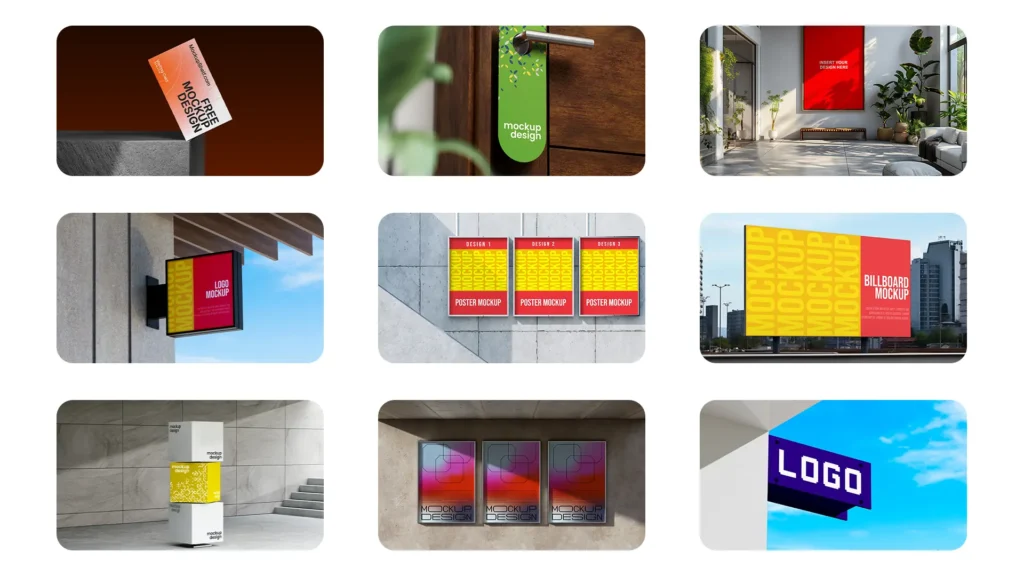
How to use design mockups depends on the type of mockup you choose, but the basic process is simple. Most PSD mockups use Smart Objects, allowing you to replace the sample artwork with your own design while keeping the original perspective, shadows, lighting and other visual effects.
1. Choose and Download a Design Mockup
2. Open the Mockup File
Most PSD design mockups can be opened in Adobe Photoshop. If you do not have Photoshop, you can also use Photopea, a free browser based image editor that supports many PSD files and Smart Objects.
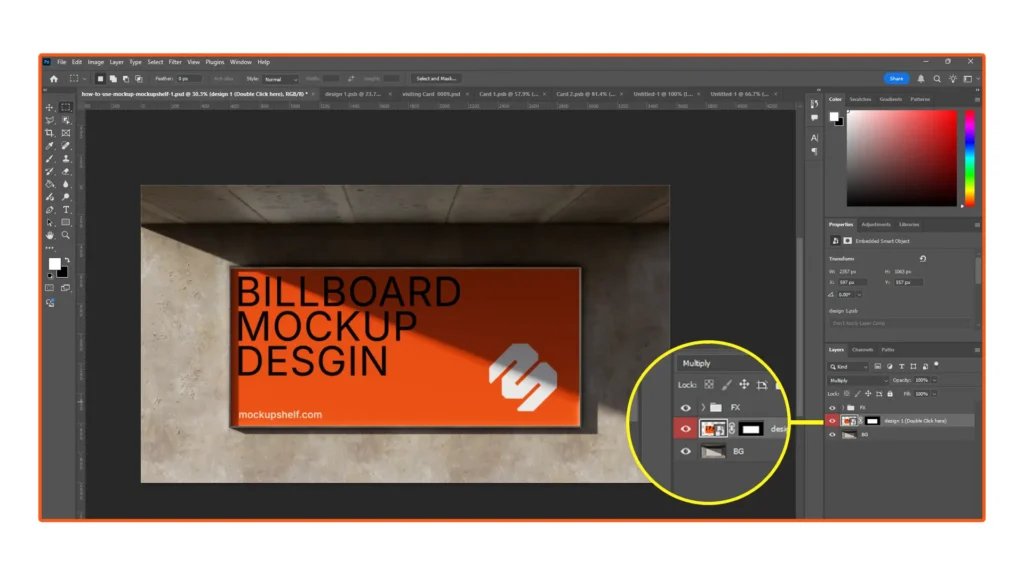
Open the downloaded mockup and look for the Smart Object layer. It is often named something like “Your Design Here”, “Place Your Design” or “Replace Artwork”.
3. Add Your Design
Double click the Smart Object layer to open the editable artwork area. Place your design inside the Smart Object and adjust its size and position so it fits correctly.
Save the Smart Object and return to the main mockup document. Your design should automatically appear in the mockup scene with the existing perspective, shadows and lighting.
4. Customize the Mockup
After adding your design, you can customize the mockup to better match your presentation. Depending on the file, you may be able to adjust the background, shadows, lighting, reflections, colors and other visual effects.
These adjustments can help make the final presentation feel more consistent with your brand or project.
5. Export Your Final Design
Once your mockup looks the way you want, export the final image as a JPG or PNG. You can then use the finished mockup for client presentations, portfolios, social media posts, websites, case studies and design showcases.
What Can You Use Design Mockups For?
Design mockups can be used to present many different types of creative work, including:
- Branding and logo presentations
- Business card designs
- Packaging and product boxes
- Posters and flyers
- Book and magazine covers
- Website and app designs
- Mobile and desktop interfaces
- Signage and advertising designs
- Social media graphics
- Product presentations
FAQ
Frequently Asked Questions About
Free Mockups
Are these mockups free to download?
Yes. MockupShelf provides free mockup templates that you can download from the website. The collection includes PSD mockups for branding, print design, packaging, devices, stationery, signage, and other creative projects.
Do I need Photoshop to use a PSD mockup?
Most PSD mockups use Smart Object layers, which are designed to be edited in Adobe Photoshop. If you don’t have Photoshop, some PSD mockups can also be opened and edited using compatible alternatives such as Photopea.
Can I use these mockups for commercial projects?
MockupShelf mockups are available for personal and commercial design projects according to the license provided with each resource. You can use suitable mockups for client presentations, branding proposals, portfolio projects, marketing materials, and other design work. Check the individual resource license for specific usage terms.
How do I use a PSD mockup?
Open the PSD mockup in Photoshop or another compatible editor, find the Smart Object layer, and replace the placeholder artwork with your own design. Save the Smart Object and the mockup will update your artwork within the scene.
What types of mockups are available?
The MockupShelf library includes flyer, brochure, business card, poster, packaging, stationery, device, smart device, signage, billboard, banner, display, and other mockup templates. New mockups are added to the collection regularly.
Are the mockup files high resolution?
MockupShelf mockups are provided in high-resolution formats suitable for design presentations, portfolios, client previews, and other professional creative work. Check the individual mockup page for the specific file details and available views.
Explore More
Learn What is a Mockup
Discover the Benefits of Using Mockups
Read our License Agreement before using files
Visit our FAQ Page for common questions
For help, Contact Us
Bonus Tip
Don’t have Photoshop?
Use Photopea — a free online editor that supports Smart Objects and PSD mockups.