
Design Education
What is a Mockup?
The Complete Guide
A mockup is a realistic visual presentation of a design placed in a real-world context, helping designers communicate ideas to clients clearly before anything goes to production.
Free Mockup Downloads
Always Free
Signup Required
Mockup Categories
Definition
What Exactly Is a
Design Mockup?
A mockup is a realistic, visual representation of a design placed inside a real-world environment or object. Instead of presenting a flat graphic on a white background, a mockup shows your design as it would actually look in the physical or digital world, on a product, a surface, a screen, or in a scene.
For example: a logo design shown on a business card resting on a desk, a label design wrapped around a bottle, a website design displayed on a laptop screen, or a t-shirt graphic on an actual garment. That’s a mockup.
“We’re designers ourselves, we know the value of a well-made mockup. That’s why we built MockupShelf: a completely free, high-quality mockup library with no paywalls, no subscription traps, and no compromises.”
– The Mockpshelf Team

Easy to understand
Clients don’t read design briefs, they look at pictures. A mockup communicates your design intent instantly, without needing explanation.

Fast to produce
With a Smart Object PSD file, dropping your artwork into a mockup scene takes less than 60 seconds, no photography or 3D rendering required.

Professional credibility
Presenting your work inside a high-quality mockup signals professionalism. It shows clients you take presentation as seriously as the design itself.

Better client feedback
When clients see work in context, they give more accurate feedback. “I want the logo bigger” is more useful than “it doesn’t feel right”, mockups make that possible.
Why Use Mockups
Why Designers Use
Mockups in Their Workflow
Mockups aren’t just a presentation trick, they’re a core part of the professional design process that saves time, reduces revisions, and wins client approval faster.
01
Professional Presentation
A flat logo on a white background doesn’t communicate brand potential. The same logo on a business card, packaging, or signage mockup shows clients exactly what they’re investing in making your pitch immediately compelling.
02
Saves Time and Money
Physical prototypes cost time and money to produce. A high-quality mockup delivers the same visual clarity in minutes. You can present five different color variations across a full brand suite in the time it would take to print one sample.
03
Helps Clients Visualize
Most clients struggle to visualize a finished product from a flat file. Mockups remove that gap, they let non-designers see exactly how the final design will look in real life, making approval decisions faster and more confident.
04
Boosts Portfolio Impact
Mockups transform a portfolio from a collection of flat files into a showcase of real-world results. Prospective clients browsing your portfolio respond far more strongly to contextual presentations than isolated graphic elements.
05
Reduces Revision Rounds
When clients see their design in context from the very first presentation, they understand scale, proportion, and composition intuitively. This eliminates many of the revision requests that stem from misunderstanding how a flat design translates to real use.
06
Wins More Projects
Proposals that include mockup previews of deliverables convert at a significantly higher rate. Showing a client what their brand identity looks like on packaging, stationery, and signage before they sign is one of the most effective tools a designer has.
Mockup Types
Different Types of
Free Mockup Templates
Mockups cover every major category of design work. Here are the most common types of mockup templates and what each one is best suited for.

Business Cards Mockups
Premium business card mockups designed to present your branding in a realistic and professional way, perfect for portfolios and client previews.

Packaging Mockups
Boxes, bags, cans, bottles, pouches, and product packaging mockup templates with realistic lighting and shadow effects.

Device Mockups
Phones, tablets, laptops, and desktop screens. ideal for UI/UX designers showcasing app interfaces and web designs.

Stationery Mockups
Notebooks, journals, folders, pens, and desk accessories, perfect for presenting editorial and print design work.

Stationery Mockups
Notebooks, journals, folders, pens, and desk accessories, perfect for presenting editorial and print design work.

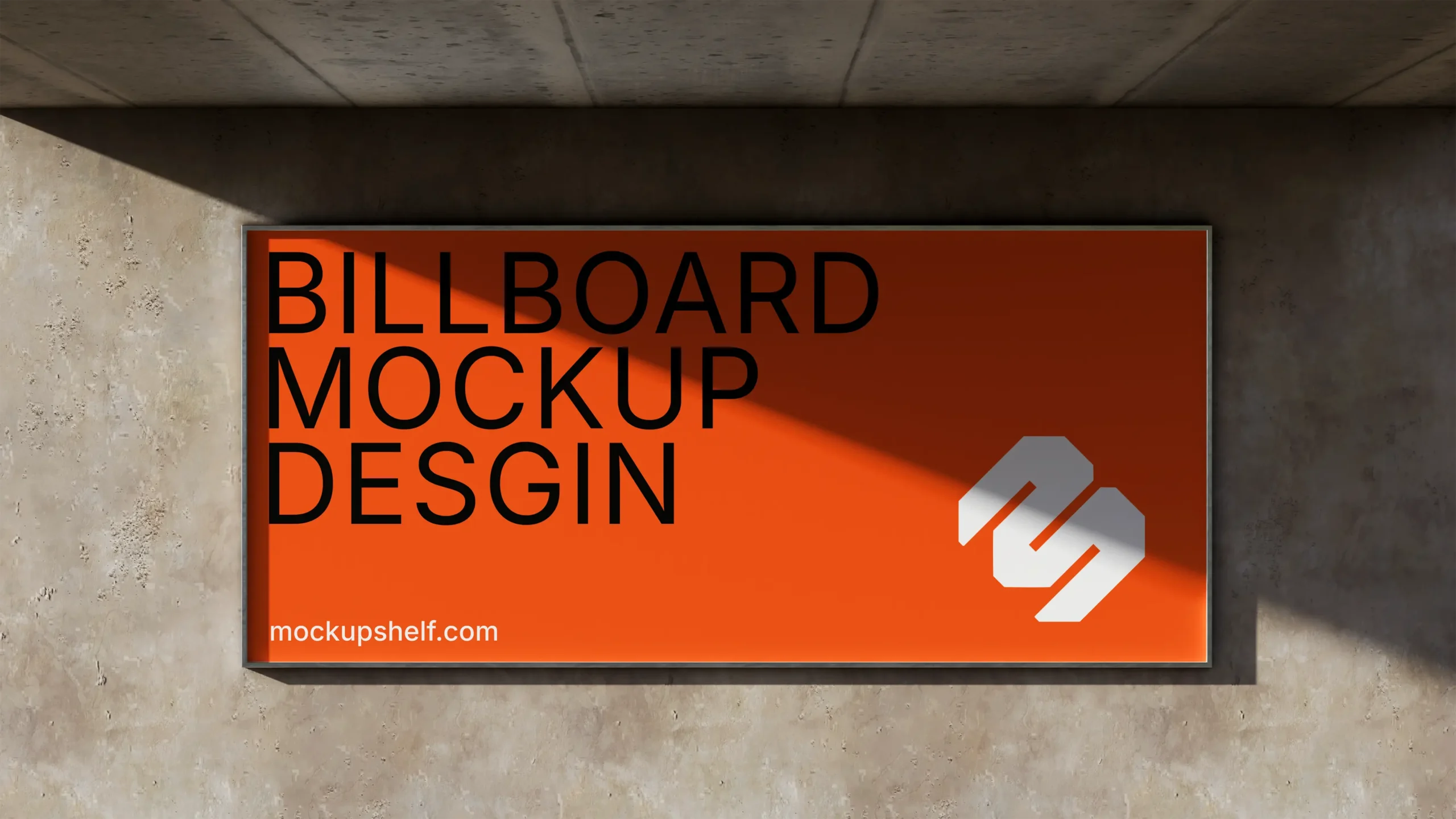
Billboard Mockups
Realistic billboard mockups designed to present your advertising concepts in a bold and impactful way, ideal for client presentations and portfolios.
How to Use
How to Use a PSD MockupStep by Step
Using a PSD mockup file is much simpler than it looks. With a Smart Object layer, the whole process takes under two minutes once you know the workflow.
Pro tip: Change the background color
Most mockups include a background color control layer. Look for a layer named “Background Color” or “BG” — double-click the color swatch to change it. This lets you match your brand color instantly without affecting the design placement.
Matching dimensions
Always check what size the Smart Object canvas is before placing your artwork. If your design is a specific aspect ratio (like a business card at 3.5″ × 2″), make sure your artwork matches that ratio before pasting it in for the cleanest result.
Exporting for print vs web
For client presentations shared digitally, export at 72–96 DPI. For printed presentations or portfolio books, export at 300 DPI. Most MockupShelf files are created at high enough resolution to support both use cases.
Ready to try it?
Browse 100+ free PSD mockup templates — organized by category, ready to download instantly.

Download the free mockup PSD
Browse the MockupShelf library and find a mockup that fits your project. Click download, no account, no email, no payment. The PSD file saves straight to your computer.
All MockupShelf mockups are free to download

Open the PSD in Photoshop
Open the .psd file in Adobe Photoshop. You’ll see a well-organized layer panel with groups for the background, lighting, shadows, and, most importantly, the Smart Object layer containing a placeholder design.
All layers are labeled and organized

Open the Smart Object layer
Find the Smart Object layer in the layer panel, it has a small icon in the corner. Double-click the layer thumbnail to open it. A new tab or window opens with a blank canvas in the exact shape and size of the surface.
Look for the Smart Object icon on the layer

Paste or place your design
Paste or place your artwork onto the Smart Object canvas. Resize it to fill the space, making sure it covers the entire canvas. Don’t worry about perspective, Photoshop handles that automatically.
Place your design, then save the Smart Object

Save and export
Save the Smart Object file (Cmd/Ctrl + S), then switch back to the main PSD. Your design now appears on the mockup with realistic perspective, shadows, and lighting applied automatically. Export as PNG or JPEG to share.
Export at 72dpi for web, 300dpi for print
IN DEPTH
Why MockupShelf Is the Best Free Mockup Resource
There are plenty of places online to find mockup templates, but most of them follow the same pattern: offer a small selection of free files to get you in, then lock the best content behind a subscription. MockupShelf was built on a different principle. Every single mockup in our library is free. No premium tier. No “pro” plan. No limit on how many you can download.
Free Mockups Without Compromise
What sets MockupShelf apart isn’t just the price tag, it’s the quality. Each free PSD mockup template is built to professional production standards: correctly labelled Smart Object layers, organized layer groups, accurate lighting setups, and high-resolution files that work for both web presentations and printed portfolio books.
Most free mockup files you find online are afterthoughts, low-res, messy layers, no smart objects, and minimal variety. MockupShelf takes a different approach: every file goes through a quality check before it’s published, so you can use them confidently in client work from day one.
Mockups for Every Design Discipline
Whether you’re a brand designer presenting identity work, a UI/UX designer showcasing an app, a packaging designer working on a product launch, or a freelancer building a portfolio — MockupShelf has free mockup templates that fit your workflow. Our library spans branding, packaging, apparel, devices, print, stationery, and signage.
No Signup. No Email. No Nonsense.
- Browse the library and find the mockup you need
- Click the download button on the mockup page
- The PSD file downloads immediately
- Open in Photoshop, drop in your design, export
- Use it in client presentations, portfolios, and social media
We don’t ask for your email address. We don’t require account creation. We don’t add watermarks to the files. The experience is as clean as the mockups themselves.
Free Tools for Designers, Beyond Mockups
MockupShelf has expanded beyond mockup templates to offer a suite of free tools that help designers run their freelance businesses more professionally. Our free invoice generator, quote generator, and QR code generator are built on the same principle as the mockup library — professional-grade output, completely free, no signup required.
FREE TOOLS
More Than Mockups,
Free Tools for Designers
Browse 500+ free PSD mockups across branding, packaging, apparel, devices, and more. No account. No cost. Just great free design resources.